Screens
Nodes
The Nodes page is your workbench. Every server you own is here, opened up so you can choose its parts, its storage layout and its operating system.
The Nodes page is where servers are made and changed. The list shows every chassis you own, grouped by the cabinet it is in, plus the ones still on the bench (bought, not mounted yet). For each one you see its parts, operating system, how many virtual machines run on it (for a storage server: how much of its backup space is in use, such as 15 GB / 1 TB) and whether it has a backup. Click Open to work on one.
Labels
Give any device a name of your own, such as "web-01", with Label on the Nodes list. A label can be up to 20 characters long. It shows on the Nodes list, on the server's page and on the rack, in both the rack view and the floor view, so you can tell identical machines apart. Clear removes it.
Inside a server
The large picture is the server seen from above with the lid off. Every empty spot is a place for a part. Hover a fitted part to see what it is; click an empty spot to fill it. Server parts explains every part in more depth.
Processor (CPU)
The brain of the server. More cores and threads means more customers can share it: every thread can be sold as virtual processors on a VPS server. A processor must fit the chassis socket, and some chassis take two processors. Older generations are cheaper but slower, and some operating systems need a newer one.
Memory (RAM)
The server's working memory. On VPS servers memory is usually what runs out first, so it is the cheapest way to fit more customers. Memory sticks have a type (like DDR4 or DDR5) and a speed, and the board only takes certain ones. Keep all sticks in a server the same speed; mixing speeds is not allowed. Faster memory sells better: buyers pick the product more often, accept a higher price and are happier on it (see Server parts). Some memory is ECC, which corrects its own errors; servers like it.
Disks
Where customers' files live. There are three kinds, from slow and cheap to fast and costly:
- SAS disks (spinning): lots of space for little money, but slow. Great for backups and storage.
- SAS SSD: fast and reliable, the everyday choice.
- NVMe (M.2): the fastest, in a small slot on the board. Not every chassis has an M.2 slot.
Disks also come in two sizes, 2.5" and 3.5", and each drive bay takes one size. Storage-heavy chassis have many 3.5" bays.
Speed matters as much as space: every customer on a VPS or hosting server uses some of the disks' speed. Spinning disks fill up with customers long before their space runs out (see Customers and churn).
Power supply (PSU)
Turns the building's power into what the server uses. It must be strong enough for everything inside (the game warns you when it is not). Better efficiency ratings (Bronze, Gold, Platinum, Titanium) waste less power as heat. A chassis with two power supply bays can keep running when one supply, or one of the building's power feeds, fails.
Expansion cards
Some chassis have slots for extra cards: network cards for faster or more connections, and GPU accelerators for heavy work.
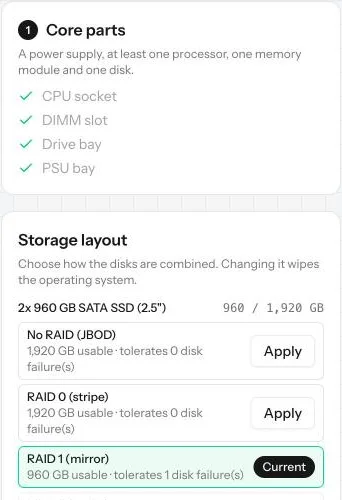
Storage layout
When a server has several identical disks, you decide how they work together. This is called RAID; Storage layouts goes through it in detail.
- No RAID: each disk on its own. You get all the space, but a dead disk takes its data with it.
- RAID 0 (stripe): disks joined into one big, fast disk. If any one dies, everything is lost. Fast, but risky.
- RAID 1 (mirror): disks keep exact copies of each other. You get half the space, and a disk can die without losing anything.
- RAID 5 and RAID 10: in between. You give up some space so that a disk can fail safely, and keep more space than a mirror.
The panel shows how much space each choice gives and how many disks can fail. For customer servers a layout that survives a dead disk is usually worth it.
Careful: choose the layout before the operating system. Changing it later wipes the server.
Operating system
A server does nothing until it has an operating system. Your choice decides what it can sell (all options: Operating systems):
| Operating system | Cost | Use it for |
|---|---|---|
| Linux | Free | Web hosting, or renting out the whole server |
| Hypervisor | Monthly license | Splitting the server into virtual servers (VPS) |
| Commercial OS | Monthly license | Customers who want a paid operating system |
| Storage Server OS | Monthly license | A backup server that keeps copies of your other servers (it cannot be sold) |
Licenses are paid every game month (one real day). If you cannot pay one, the server stops until you do.
Backups
A server can have a backup: a storage server (another machine full of disks, running the Storage Server OS) or a ready-made rack NAS, which keeps a copy of its data. If the server's disks die, the backup brings your customers' data back; without one the server is wiped and your reputation takes a hit. One backup can protect several servers until its space runs out. Set it from the Nodes list with Set backup server. A storage chassis that has no operating system yet shows N/A instead of a backup. See Backups.
To empty a server (to replace or sell it), use Move all virtual machines under its virtual machines: every VM and its customer moves to another running hypervisor in the same datacenter that has room for them, and the old server stops taking new customers. With a working backup the move is safe. Without one there is a 60% chance that one or a few customers lose their files on the way and leave, and the page tells you so before you confirm.
Resource use
Once a server is racked, its page shows a Resource use panel: processor, memory, disk, disk I/O, IPv4, bandwidth and power, each as what is used against what the machine has. It also shows how many customers are on it, the monthly revenue they bring, the server's load, its memory speed score and the average mood of its customers.
At its limit
When a server that sells to customers runs out of something, it turns amber on the Nodes list and on its page, and you get one notification (and another when it clears). A server is at its limit when:
- 95% of its processor (vCPUs sold, or threads in use), memory or disk is used,
- its customers ask more of the disks than they can serve,
- its average traffic reaches 90% of its port speed,
- its draw at full load reaches 90% of what its power supplies can deliver (a second supply adds room),
- or no IPv4 address is free where it stands.
New customers no longer fit on it. Add parts, move customers, or build another server.
When disk space reaches 70% on a server whose disks are mirrored, the panel suggests growing the array by swapping the disks one at a time for larger ones (see Storage layouts). When disk I/O reaches 70%, it suggests moving some virtual machines away or using faster disks.
Changing a running server
You can add or swap parts after a server is live, but only some of them while it runs:
- Disks in drive bays and power supplies are hot-swap. On a server with customers, a power supply can come out only if the others carry the load alone, and a disk only if its array has redundancy to spare and the remaining disks still hold the data.
- Processors, memory, M.2 drives and cards only go in or come out when the server is powered down. On a running server the button is disabled: force a shutdown or open a maintenance window first. On a server with customers, what is left must still fit their virtual machines.
- Upgrading memory in place. Click a memory module: if your inventory holds a larger module that fits its slot, the panel offers to swap them. A swap never lowers the memory, so it works even with customers on the server, but only while the server is powered down. The hands pull the old module first and then seat the new one, and the old module goes back to your inventory.
The Inventory button at the bottom right of a server's page lists your spare parts and marks the ones that fit a free slot of that server.
- A stolen part is not physically there, so its record can be cleared at any time, even on a running server.
- Shutting down a server with customers is downtime. Announce a maintenance window on the Maintenance page a day ahead: during it, customers know and it does not count against you (see Maintenance windows).
Parts wear out with use, faster when the server is busy or hot. The Maintenance page shows how healthy each part is, so you can replace it before it fails.
Common mistakes
- Buying memory or a processor that does not match: the game hides parts that do not fit, so if a part is missing from the list, it does not fit this board.
- Choosing RAID 0 for customer data, then losing everything to one dead disk.
- Forgetting the power supply: the server will not even start.
- Expecting to swap memory on a running server: it is refused. Plan a maintenance window.
- Ignoring an amber server: nothing new sells on it, and customers on a crowded server grow unhappy.
Want the numbers? The full rules: Building servers