Screens
Racks
The Racks page shows every cabinet you rent or own, in floor view and rack view. Mount devices, move them, cable them and watch traffic here.
Racks is where your hardware meets the datacenter. Every device you have mounted is here, grouped by the datacenter it stands in. Use it to put hardware into cabinets, connect it to the internet and keep an eye on each cabinet's limits.
Picking a datacenter
At the top, one card per datacenter you use: its name, city, how many cabinets and devices you have there, and this week's demand in that building (low, normal, high, very high). Click a card to show that datacenter. Expand or add a cabinet takes you to Colocation.
Floor view
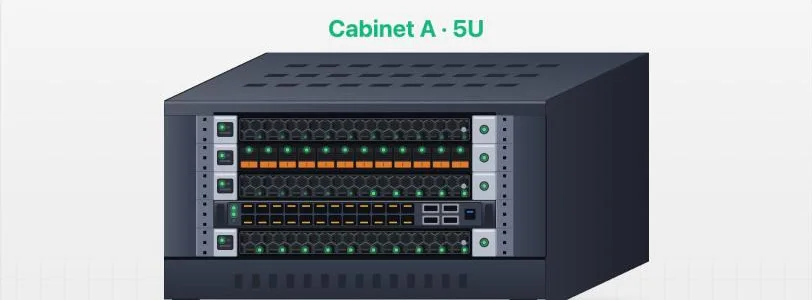
Floor view draws your cabinets as racks with live lights on every device: green running, amber with a problem, red down. With several cabinets in one datacenter, click one to open its rack view.
Rack view
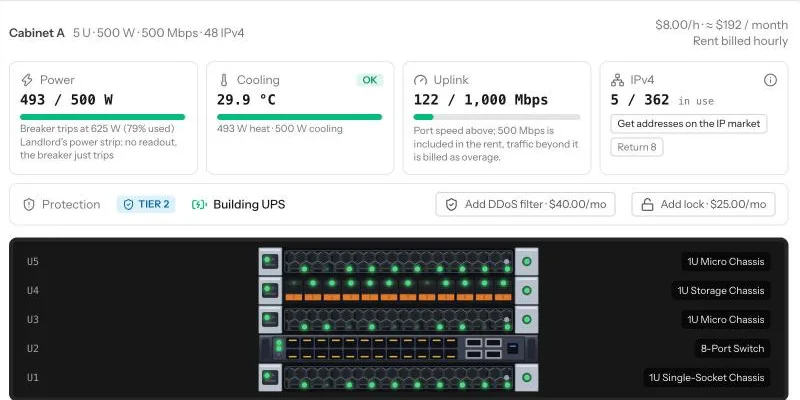
Rack view shows the details of each cabinet:
- The header: cabinet name, size in units, included power, bandwidth and IPv4, the rent per hour, and whether the rent is prepaid or billed hourly.
- Four boxes: Power, Cooling, Uplink and IPv4 (see Cabinets).
- Protection: the building's tier, its UPS, and the DDoS filter and lock you can add.
- The units, numbered from U1 at the bottom, with every device in its place and its label if you gave it one (see Nodes).
- The Network panel, where you cable devices and add a second carrier, a B-feed or a fibre hand-off (see Networking).
Mounting a device
- Click an empty unit.
- Choose a rack-mountable item from your inventory: a server chassis, a blade enclosure, a rack NAS, a switch, a firewall, a router, a UPS, a power strip (PDU), a transfer switch, a cooling unit, an environment sensor or a remote console.
- Click Mount here.
If it does not fit where you clicked, it goes to the nearest free run of units. The panel warns you before you mount something that will not boot (no processor, memory, disk or operating system), something that would trip the breaker, or a cooling unit the cabinet does not need yet.
Moving and removing
- Drag a device to another free spot in the same cabinet; its cables stay.
- Move to another cabinet: in the same datacenter it moves at once and you re-cable it; to another datacenter it is shipped and is offline on the way.
- Remove from rack unplugs it, powers it off and puts it back in your inventory. A server with active customers cannot be pulled.
Inventory and traffic
On the right, the Inventory list shows what you can mount, with a Sell button to list spares you bought new on the second-hand market. The Inventory page has the same button on every spare. Above it, Network traffic draws the last 24 hours of traffic at the uplink, with peaks, utilisation and attacks.
Common mistakes
- Mounting a server and forgetting to cable it: it stays offline.
- Filling the cabinet so there is no room left for a switch.
- Ignoring the breaker warning when mounting one more server.
Want the numbers? The full rules: Colocation